My good friend Gordon posted about a paper map saving his day: https://mapguide.wordpress.com/2016/08/01/a-paper-map-saved-my-day/.
How refreshing! I had a similar experience this summer as well. We did a two week vacation to visit family in CA. Our trip meandered through CO, NM, AZ, UT, NV and lots of CA. A week before we left I went to WalMart and bought a map of the Western US. Not to knock anyone, but none of the workers had any idea where to find a map in the store, also got a few strange looks at the words "paper map"! Alas, they were tucked away with the magazines, a good selection of maps as well. My kids were intrigued by my purchase. I highlighted our route and everyone was hooked. I think the ability to see the scope of our trip really got them going and the tangibility of the map hooked them!
Along the way everyone wanted to help find the next turn or determine how many miles until the next bathroom, but it was my 11 year old who really lived the map, he navigated the bulk of our trip!
As a side, we only pulled out the trusty Google twice along the way.
Jeremiah
Friday, September 9, 2016


Thursday, January 9, 2014
Using Block Attributes to Automatically Label AUD Features
This post describes how to set up and use attributes to
automatically label AUD features. For example when you place a transformer in
AUD it is automatically labeled with the kVa rating:

The process is very simple and uses standard AutoCAD block
attributes. In this post we will add and attribute for NAME_NUMBER to the standard AUD Pole block.
Open AUD
Open the standard AUD pole block from C:\ProgramData\Autodesk\AutoCAD
Utility Design 2014\R19.1\enu\Configurations\RUS\Style\.


The finished drawing will look like this:


In the Configuration tab open the Industry Model dialog:


There are an infinite number of possibilities for labeling
in AUD. Using attributes on objects automates the process. You can add as many
attributes as you need to any block and they can use a combination of AUD
driven values and user updated values. The AutoCAD help file has details on
using Attributes. AUD Callouts (Industry Model Callout tab) work in the same
way, they just do not have a graphical component like the circle for the pole. You
can create custom callouts by starting with the LIN-CALL.dwg and STR-CALL.dwg
found in:
C:\ProgramData\Autodesk\AutoCAD Utility Design
2014\R19.1\enu\Configurations\RUS\Annotations.
Jeremiah
Friday, September 13, 2013
DWConnector will make your life easier!
Here is a new video on DWConnector, a tool built by Spatial Business Systems (www.spatialbiz.com) for AutoCAD Utility Design.
http://www.youtube.com/watch?v=2E4MGyASkpk
DWConnector connects AutoCAD Utility Design to your finance and work order management systems. This allows your designers and engineers to do two tasks that typically are done in two other software's!
http://www.youtube.com/watch?v=2E4MGyASkpk
DWConnector connects AutoCAD Utility Design to your finance and work order management systems. This allows your designers and engineers to do two tasks that typically are done in two other software's!
- Manage their piece of the work order process in their native design environment.
- Automatically generate material lists as they design with the current finance information and submit the final material list to the warehouse system for ordering.
This tool eliminates a lot of extra clicks and screens while removing the need to duplicate information.
Check it out and let me know what you think!
Jeremiah
Thursday, June 20, 2013
SBS DWConnector - SEDC for AUD
SBS DWConnector allows you to get real time costing and Work Order data from you financial system in AUD! Watch my video to see how it works.
Callout's in AUD 2014!
Have you had a chance to look
at AUD 2014? The Callout feature is really nice, very simple, works… and has
leaders… and automatic update's!

It is simply a block with attributes,
you can then define the attribute fields with AUD fields in the editor:

The only limitation out-of-the-box that I see is it cannot grab data from the material list, so we cannot see the cost
or minor materials through the label. Hopefully I am just missing something! I will let you know if I find it.
Jeremiah
Monday, May 20, 2013
Finding RUS Specifications and Drawings
I am posting this in hopes that it will help someone spend less time in a day finding the latest RUS standards for design!
RUS Electirc Bulletins page:
http://www.rurdev.usda.gov/RDU_Bulletins_Electric.html
A few of the documents I use on a regular basis:
Specifications and Drawings for 24.9/14.4 kV Line Construction (12/15/98):
http://www.rurdev.usda.gov/SupportDocuments/UEP_Bulletin_1728F-803.pdf
Specifications and Drawings for 12.5/7.2 kV Line Construction (4/21/05):
http://www.rurdev.usda.gov/SupportDocuments/UEP_Bulletin_1728F-804.pdf
Specifications and Drawings for Underground Electric Distribution (6/2/00):
http://www.rurdev.usda.gov/SupportDocuments/1728f-806.pdf
To my knowledge the Bulletins page contains the most current documents, so watch for updates!
Jeremiah
RUS Electirc Bulletins page:
http://www.rurdev.usda.gov/RDU_Bulletins_Electric.html
A few of the documents I use on a regular basis:
Specifications and Drawings for 24.9/14.4 kV Line Construction (12/15/98):
http://www.rurdev.usda.gov/SupportDocuments/UEP_Bulletin_1728F-803.pdf
Specifications and Drawings for 12.5/7.2 kV Line Construction (4/21/05):
http://www.rurdev.usda.gov/SupportDocuments/UEP_Bulletin_1728F-804.pdf
Specifications and Drawings for Underground Electric Distribution (6/2/00):
http://www.rurdev.usda.gov/SupportDocuments/1728f-806.pdf
To my knowledge the Bulletins page contains the most current documents, so watch for updates!
Jeremiah
Wednesday, May 8, 2013
How to stack text in Map3D Expression builder
This ha boggled me several times in the last few months and I can not for the life of me remember this:
'\P'
That's all it takes to stack text in the Map3D Expression builder!

Jeremiah
'\P'
That's all it takes to stack text in the Map3D Expression builder!

Jeremiah
Tuesday, April 16, 2013
How to set specific layer for AUD Objects
AutoCAD Utility Design 2013
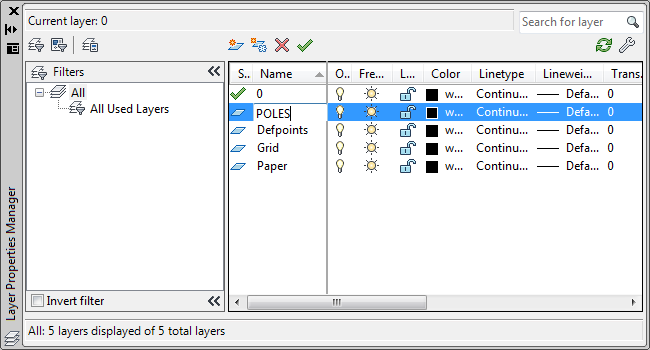
In this tutorial we will create a specific layer for the AUD Pole objects, these steps can be used for all AUD objects and will allow the use of traditional AutoCAD Layer commands to control visibility.
- Create a new layer called POLES
- Type LAYER at the command line to invoke the Layer Properties Manager:
- Click the new layer button (in red above).
- Type POLES for the layer name:
- Close the Layer Properties Manager.
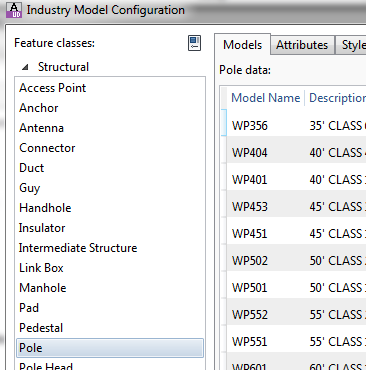
- In the Configuration tab in the ribbon click the Industry Model button:
- Choose the Pole Feature Class:
- Click on the Styles tab:
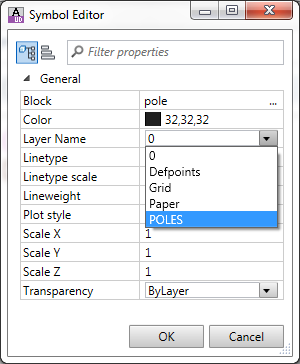
- Click on the Default 2D Plan Symbol, then click the edit button (in red below):
- In the Symbol Editor drop down the Layer Name pick list and choose the POLES layer:
- Click OK to close the Symbol Editor.
- Click Apply to save the changes in the Industry Model Configuration window.
- Click OK to close the Industry Model Configuration window.
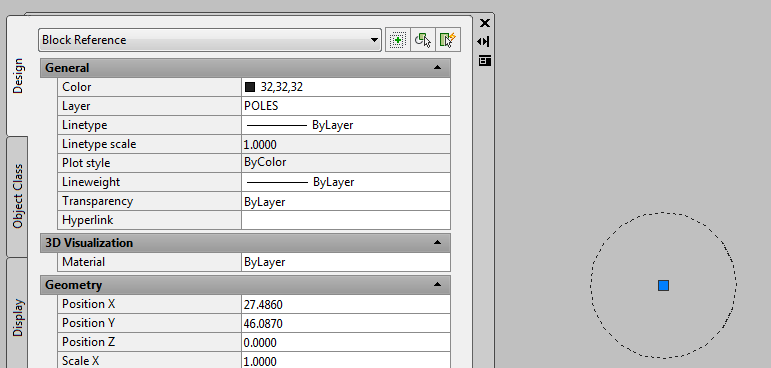
- Select an existing Pole or create and a new one and view its properties (select pole, right-click, choose Properties). You will see the layer is now POLES:
- Repeat this process for the Existing and Removal Pole Styles as well or any other AUD object type. You can create layers for each state and then can control AUD Object visibility with traditional AutoCAD layer tools.




Friday, March 22, 2013
Visit us at the APPA E&O Conference next week!
Spatial Business Systems will be in booth 519 at the APPA E&O Conference next week.
Stop by and see how we can improve you engineering, design and staking environment with our DWConnector solutions.
Here are the show details:
http://www.publicpower.org/EandO/index.cfm?ItemNumber=29261&navItemNumber=29236
See you there!
Jeremiah
Stop by and see how we can improve you engineering, design and staking environment with our DWConnector solutions.
Here are the show details:
http://www.publicpower.org/EandO/index.cfm?ItemNumber=29261&navItemNumber=29236
See you there!
Jeremiah
Monday, March 18, 2013
Video: Using GPS and Survey data in AutoCAD Utility Design
Here is a short video I made on how to use GPS and Survey data in AUD.
Using_GPS_and_Survey_Data_in_AutoCAD_Utility_Desig
Jeremiah
Using_GPS_and_Survey_Data_in_AutoCAD_Utility_Desig
Jeremiah
Thursday, March 14, 2013
Win a trip to Autodesk University 2013!
This is an awesome opportunity to show you or your companies skills in Autodesk products and win an awesome prize! Check out Dana's for a great overview:
http://bimontherocks.typepad.com/my_weblog/2013/03/get-your-projects-recognized-and-maybe-win-a-trip-to-autodesk-university-au2013.html
And then sign up here:
http://www.infrastructure-excellence.com/
Good luck!
Jeremiah
http://bimontherocks.typepad.com/my_weblog/2013/03/get-your-projects-recognized-and-maybe-win-a-trip-to-autodesk-university-au2013.html
And then sign up here:
http://www.infrastructure-excellence.com/
Good luck!
Jeremiah
Wednesday, March 6, 2013
Spatial Business Systems Announces SpatialBiz Plug-in for FME 2013
Here is the official press release for our FME SpatialBiz Plugin!
February 20, 2013
Annecy, France – Spatial Business Systems (SBS) has announced at the Safe Software Value-Added Reseller conference the availability of the SpatialBiz Plug-in for FME 2013. The new release is compatible with FME 2013 and has a number of new features and improvements including:
This release marks the use of a new naming convention that is consistent with the Safe Software FME product suite designations. The SpatialBiz Plug-in, also known as the Smallworld Plug-in for FME, is the foundation for supporting advanced data translation and interoperability solutions with the GE Smallworld GIS product. Use of the SpatialBiz Plug-in with the SBS OSpatial Plug-in provides synchronized data exchange with Oracle Spatial, thus enabling coexistence of Smallworld with spatial data warehouses based on Oracle technologies. The SpatialBiz Plug-in also works with Esri GIS technologies to support dynamic access to the Smallworld VMDS database from supported Esri products, thus allowing Esri users to perform business analytics and spatial analysis on GE Smallworld data.
Availability of the SpatialBiz Plug-in 2013 is February 20, 2013.
About Spatial Business Systems
SBS offers an unparalleled combination of talent and advanced spatial information tools to help companies leverage their CAD and GIS investments by expanding them with open database, service-oriented, technologies. Headquartered in Lakewood, Colorado, with offices in Melbourne, Australia the SBS team is a highly regarded group of professional consultants and software developers, with many decades of experience in the application of geospatial information technologies. For additional information about SBS visit http://www.spatialbiz.com/ |
Tuesday, February 19, 2013
Adding Pole Heads to an existing pole in AUD
After you add a Pole in the AutoCAD Utility Design (AUD) environment it is very easy to add most attachments using the tool bars and Design Explorer Pole Heads are one exception to this, they cannot be added using theses tools. The command you need is
AUDADDTOPOLE. Here is how it works:
2. Type F for Feature
3. Choose Pole Head
4. Choose Model Name
5. Select the Pole Head to use and click OK
6. Click Back
7. Click Back
8. At the command line type X for exit
9. Select the pole(s) you want to attach to, press enter
10. Press enter again to end the command
A
little convoluted but it works great! Still working on how to get the conductors to
connect and will post as soon as i do. As you can see this tool can be used for all kinds of other attachments as well.
Jeremiah
Friday, February 15, 2013
Connecting my connected life...
So, just moved my blogspot account into Google+ with the tool in blogspot. I have also joined HootSuite. This is a test, so there may be a few, when its done I will lay out the process to becoming uniformly social!
Jeremiah
Jeremiah
Friday, February 1, 2013
Connect to ArcSDE with AutoCAD Map3D, Civil3D, or AutoCAD Utility Design
Leveraging ESRI ArcSDE in your
AutoCAD design can make life a whole lot better! Using the FDO tools found AutoCAD
Map3D, Civil3D, and AutoCAD Utility Design this is easy to do. Here are the
steps to do it:
You need to copy them into this
folder:
C:\Program
Files\Autodesk\AutoCAD *\bin\FDO
Once you copy them into the folder
open AutoCAD *. At the command line type MAPWSPACE and choose Y to open the Task Pane. In the Task Pane click the
“Data” button and choose “Connect to Data…”:

In the Data Connections by
Provider dialog box choose “Add ArcSDE Connection”, add your connection details
and Login with the appropriate username and password:

Once you have logged in, select
your Data Store and Version, click “Connect. The list of layers available to
that user are listed, select what is needed and click “Add to Map…”.
Wednesday, December 26, 2012
True Scale Map Books in Map3D revisited...
Finally Fixed the link to creating True Scale Map Books in Map3D. You can find the post here with the link at the bottom!
http://gisx.blogspot.com/2008_10_01_archive.html
Jeremiah
http://gisx.blogspot.com/2008_10_01_archive.html
Jeremiah
Thursday, December 6, 2012
SSD is Awesome
Just got an SSD for my Laptop today, freaking awesome. My 10min startup is now 18sec and my 5min shutdown is now 11sec! Installing SQL and AUD to see how good it really works!
My IT dept. is the best!
Jeremiah
My IT dept. is the best!
Jeremiah
Subscribe to:
Posts (Atom)